
Native MacOS app

Works on macOS Sonoma +




$4.99
One-time purchase
Highlights

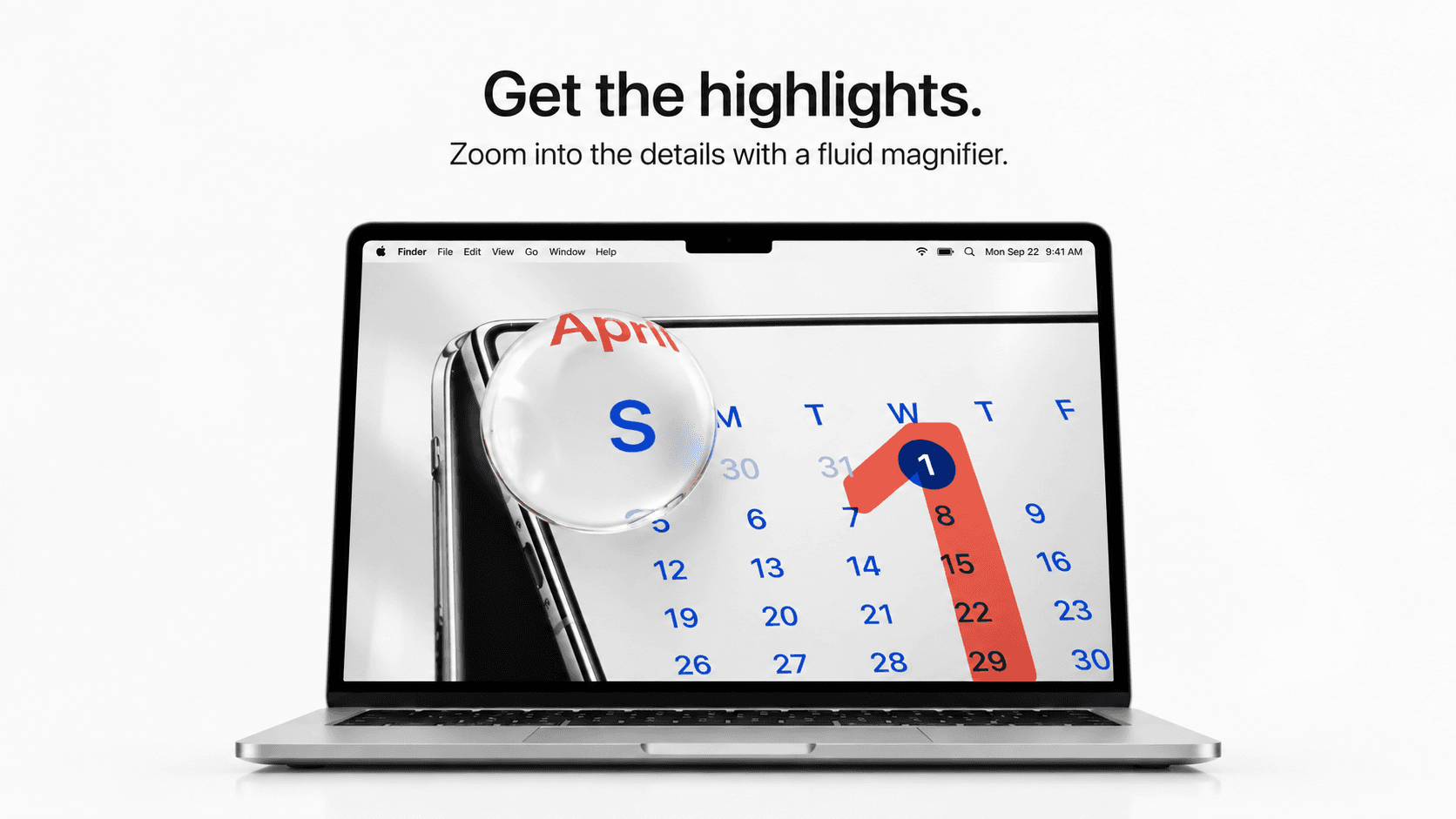
Liquid Magnifier
Magnify anything on your screen instantly.

Instant Peek
Preview supported files without opening them.

Native Cursor
Keeps the macOS cursor you already know.

Simple & Lightweight
No complicated controls or unnecessary interface.
Works Across macOS
Designed to stay available throughout your everyday workflow.
Shortcuts

Option
(

)
Hold to magnify.
Control
(

)
Hold to preview.
A new way to interact with your Mac.
Fluid Pointer adds a new layer of interaction to macOS without replacing or changing the cursor you already know. Your native Mac cursor stays exactly the same, Fluid Pointer simply gives it new abilities whenever you need them. Instead of introducing another toolbar, floating menu, or complicated set of controls, everything happens directly around your pointer through two simple features: Magnifier and Peek. Magnifier lets you bring anything on your screen closer without zooming the entire page, while Peek lets you look inside supported files and content without opening them. Both are activated with familiar keyboard keys and disappear as soon as you release them. There is almost nothing to learn: move your cursor normally, point at what interests you, and hold the key for the interaction you want. Option activates Magnifier. Control activates Peek. Release the key and Fluid Pointer gets out of the way. It's designed to make your cursor more capable while keeping the familiar Mac experience completely intact.
⌥ Hold Option · Magnify ⌃ Hold Control · Peek
Magnifier. See more, right where you are.
There are moments when you want a closer look at something without changing everything around it. That's what Magnifier is for. Move your cursor over any part of your screen and hold the Option (⌥) key. A liquid-glass magnifying lens forms around your pointer, instantly enlarging whatever sits underneath it. Keep holding Option and simply move your mouse or trackpad as you normally would, the lens travels with your cursor, letting you explore small text, images, interface elements, websites, documents, creative work and other details without changing the scale of the application itself. The center of the lens keeps the magnified content clear and readable, while its curved glass edges refract the surrounding screen to create the feeling of a physical lens floating above macOS.
There are no extra controls to open and nothing you have to dismiss afterward. Hold Option when you want Magnifier, move the cursor to explore, then release Option when you're finished. The lens fluidly collapses away and your cursor continues exactly where you left it. That makes Magnifier useful not only when something is difficult to see, but anytime you want to inspect a detail without interrupting your workflow. You're not entering a separate zoom mode. You're temporarily giving your existing cursor a closer view of the screen.
01 — Point
Move your cursor over anything.
02 — Hold ⌥ Option
Magnifier appears around your cursor.
03 — Release
The lens disappears.
Peek. Hold Control. Look inside.
Some things don't need to be opened just to be understood. Peek lets you preview supported content directly from where you are. Move your cursor over a supported file or piece of content and hold the Control (⌃) key. Instead of launching another application, Fluid Pointer opens a large floating preview near your cursor so you can quickly see what's inside. Keep Control held while you inspect it, then release Control to close the preview instantly. Your original window stays where it was, your workflow doesn't change, and you don't end up with another application or document that needs to be closed afterward.
Peek is designed around actual content rather than arbitrary interface elements. It can respond to supported images, videos, PDFs, documents, presentations, spreadsheets, audio, compatible creative files, file attachments and genuine web links when Fluid Pointer can resolve them to previewable content. It deliberately avoids turning every button, menu, folder, toolbar item or label into something interactive. That makes Peek predictable: point at something meaningful, hold Control, and take a look. The preview uses the same liquid-glass visual language as Magnifier, expanding into a larger rounded surface that gives the content room to breathe while still feeling connected to your cursor.
The entire interaction becomes point → hold → look → release. Something that would normally require opening a file, waiting for an application, checking its contents and closing it again can become a temporary preview that disappears the second you're done.
01 — Point
Hover over supported content.
02 — Hold ⌃ Control
Peek opens the content instantly.
03 — Release
The preview disappears.
Always in your control.
Fluid Pointer lives quietly in your Mac’s menu bar, giving you quick control whenever you need it. Turn Magnifier or Peek on and off individually, choose whether Fluid Pointer launches when you sign in, or quit the app completely at any time.
Use both features together, keep only the one you need, or turn everything off. Fluid Pointer stays out of the way until you want it.

Use what you want.
Enable Magnifier and Peek individually.
Ready when you are.
Launch Fluid Pointer automatically when you sign in.
Quit anytime.
Close Fluid Pointer completely from the menu bar.


